
Marketing: Inventory and Products

This tutorial will cover the new method of marketing programs by using Inventories and Products.
The existing method of marketing allows for one price for a given type of reservation (commuter, single occupancy room, double occupancy room, etc.) but with Inventories and Products you are allowed do create almost any combination you'd like.
Enable the program for marketing
As with any program you wish to market you must first click the 'Enable marketing' button.

Create an inventory
Once marketing is enabled for the program click the Marketing > Reservation pricing on the left side of the page.
Click the 'Inventory' button.
Then click the 'Quick create inventory for program' button.

The inventory represents all of the possible combinations of accommodations at your center. This may be a long list and many will list the 'Available reservations' as 0. We show those with zero reservations because you may add those in the future. For example, a program may start with no rooms, but you could still price them out knowing you'll add room reservations in the future.

Create a product from the inventory
With the inventory created you can create a product which allows you to market and price the inventory.
Click the three dots for the inventory you want to create a product for and select 'Create product'

What you'll see next is the product editor page. There is a lot on this page and we'll walk through each part. On the right side is the preview page of what the product page will look like for a guest. Click 'Refresh' to see what it will look like as you edit the settings on the left.

You can provide a product label and description. Both are only text, and helps the guest understand what they are registering for. Click 'Save' when you make changes to see them on the right side.

To define a price expand the 'Pricing options' and click 'Add price option'

Give the price option a label and define what the guest would pay now and the amount that is due when the program concludes. When the 'pay now' and 'final due' are different, then you're effectively asking for a deposit. In this first example we're giving a price option that requests a $100 payment now, but the final amount the guest is expected to pay will be $500.

With this example the guest is expected to pay the full $500 at the time of checkout and that matches the final amount due, so no further payment would be expected.

After saving both price options and refreshing the preview you can see that the guest will now see multiple price options and the far right side shows greater details for the guest to understand what is paid now, what is paid later, and the total cost of the registration.

Important: Enable the products and preview
Back in the product details page, under Marketing > Reservation pricing. Check the 'Products' and then click 'Save'. If you do not make this change, then the previous method of marketing is used.

Go to the program details Marketing > Marketing section and click the link for the 'Program Register Link'

And you will see the new marketing page with the 'In-Person' product.

Adding Another Product
There is no limit in Retreat Portal for how many products you can create from an inventory. In the example above we created an 'In-Person' product with a final price of $500. But, perhaps we want to offer a 'Virtual' pricing that has a final price of $400?
Go back to the program details, Marketing > Reservation Pricing > Inventory. Then click the three dots for the 'Commuter' and select 'Create product'.

Repeat much of what you set previously for 'In-Person', except modify it for 'Virtual'.

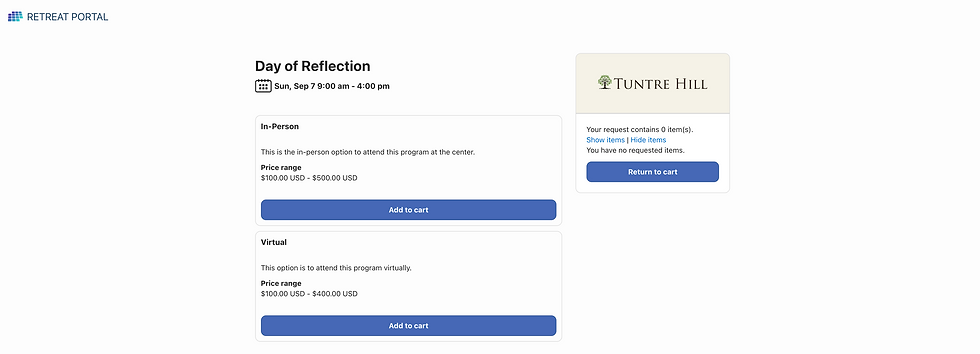
When you preview the reservation page now you will see both options listed. Registration for either will place the registrant in the same type of room.
Next Steps
View our in-depth tutorial on marketing both in-person and virtual programs (similar to the above): https://www.retreatportal.com/post/marketing-in-person-and-virtual
View our in-depth tutorial on marketing different prices for the same room: https://www.retreatportal.com/post/marketing-multiple-price-options
Comments